1. Two fingers Swipe down for quick access tray

You probably familiar with the fact that you can swipe down one finger on the screen and get to one of the best feature of an Android smartphone, notification tray. But did you try to swipe down two fingers on the screen? Did you? Well, if you didn't then do it. You will be presented with the Quick Access Tray from where you can quickly get to your favourite settings. Don't like the default layout? Tap&hold the tiles and rearrange or add new ones to Quick Access Tray!
2. Custom Sound Quality
Buried deep inside audio settings you will find Adapt Sound option. This little feature will personalized your audio experience on Samsung Galaxy S4. For this to work you will need your Galaxy's headphones, exceptionally good i may add, and when using this headphones you will hear the most noticeable difference. During the audio setup, the Galaxy S IV will calibrate the sound for each ear and will compensate any shortcomings. It will adapt and personalize low, medium and high sounds for you auditory system. You will immediately notice a difference in audio calls, music and other sounds from your phone.

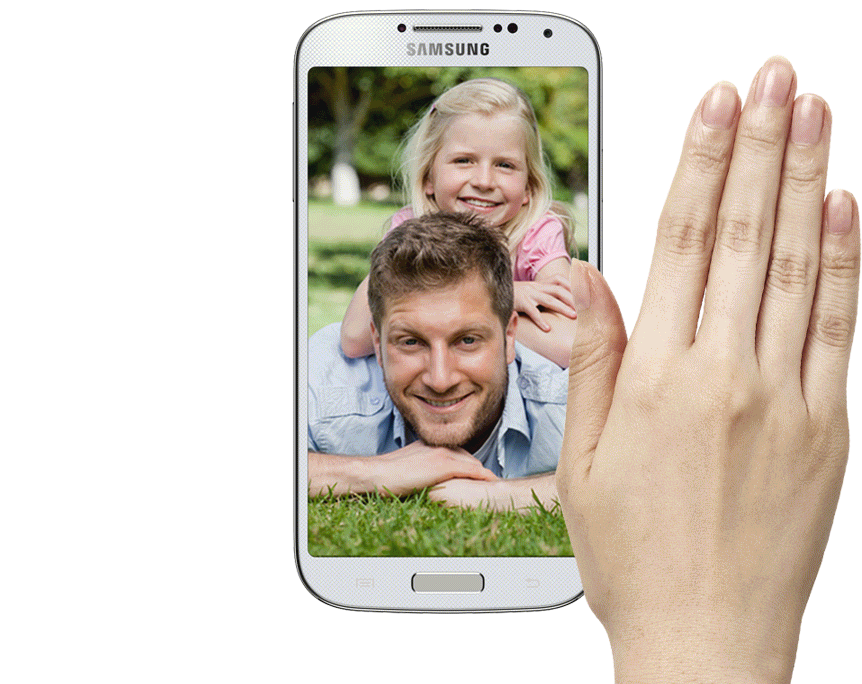
For this feature to work you will have to turn it on here: Settings-My Device-Motion and Gestures-Air Gesture. Now you will be able to check for missed calls, emails and notification by simply waving your hand in front of the phone when Samsung's Galaxy S IV display is turned off. This particular Air Gesture is called Quick Glance.
There are other useful air gestures like Air-Browse, Air-Move or Air-Jump which are designed to offer access to various settings and perform different action without you having to even touch the phone.
Even in this day and age, the day of WI-FI everywhere, the big telecom company’s insist in holding a firm grip on their inflated revenues generated by data transfers. I will not even go in the roaming tariffs. So, back to the topic. You can find this very useful option, especially if you travel a lot, and in the mean time save again a few bucks by not having to purchase an app for this task. You can be sure that you are staying in the limits of your plan by simply setting alerts accordingly to your data plan. You can even spot which app on your smartphone is a data-hog.

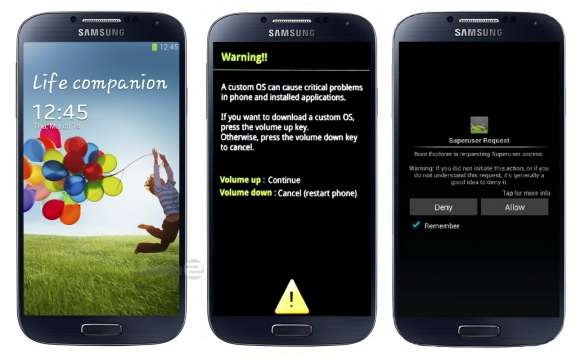
Of course there are many other settings, tools and option but some of the fun of having a new phone is to discover them by yourself. ( or maybe just my excuse for not making a top 10 list ;o ). Many other windows will open for you if you root your Samsung Galaxy S4.
If you know about more semi-hidden, not-so-obvious settings in Samsung Galaxy S4 please feel free to drop them in the comments below.
By Aleman Adrian
3. Check Notifications without touching the Galaxy S4
There are other useful air gestures like Air-Browse, Air-Move or Air-Jump which are designed to offer access to various settings and perform different action without you having to even touch the phone.
4. Blocking Mode for call and notification filtering
This blocking features of the Samsung Galaxy S4 can easily replace any paid application from Google Play Store and will save you a couple of bucks. But more important, this options will give you peace of mind because they can filter out any insistent phone marketeers, ex-girlfriends/boyfriends or annoying notifications. And i choose the word filter because once this mode is activated it will block all the above and will let in only calls and notifications that you consider important. You will find this option under Settings-My device-Blocking Mode.5. Built-In Data Traffic Monitor
 |
Samsung Galaxy S4 Built-In Data Traffic Monitor |
Of course there are many other settings, tools and option but some of the fun of having a new phone is to discover them by yourself. ( or maybe just my excuse for not making a top 10 list ;o ). Many other windows will open for you if you root your Samsung Galaxy S4.
If you know about more semi-hidden, not-so-obvious settings in Samsung Galaxy S4 please feel free to drop them in the comments below.